Placeholder Topic
Enable SMART on FHIR for Enghouse Vidyo Epic Integration
Customer configuration instructions for enabling the Enghouse Vidyo Epic Smart on FHIR Service workflow.
1. Before you begin
Before enabling SMART on FHIR, confirm that your Vidyo environment meets the minimum supported versions below.
| Minimum Supported Versions | |
| VidyoPortal and VidyoRouter | 26.2.0 or later |
| VidyoGateway | 26.1.0 or later |
| VidyoConnect for Desktop | 26.2.0 or later |
| VidyoConnect for WebRTC | 26.2.0 or later |
| VidyoConnect for Mobile | 26.2.0 or later |
| VidyoConnect Room and VidyoRoom | 26.2.0 or later |
| Vidyo Epic FHIR Service | 26.1.0 or later |
| Vidyo Event Service | 26.1.0 or later |
|
Note Version requirements may change before General Availability (GA). Confirm final requirements and versions with your Enghouse Vidyo representative before production rollout. |
2. Request Epic application client IDs
To enable the integration, request the Epic client IDs for the Vidyo applications listed below. Use the non-production client IDs for testing and the production client IDs for go-live.
| App Name | Non-Prod Client ID | Prod Client ID | Purpose |
| Vidyo Epic FHIR Service Patient | 33bf5c24-48d0-4f92-8e21-8cf856d023a9 | e75df0c3-247d-4cf3-b292-c46ffed980dc | Used for Patient FHIR launches |
| Vidyo Epic FHIR Service Provider | 83970d92-5423-40ae-a7bf-e9bc9820b5ee | e336c3cb-3f5d-4812-a735-251a7d1252cf | Used for Provider FHIR launches |
| Vidyo Epic FHIR Service Backend System | cc267210-9de1-4a3f-b0b6-88b0d4d5bc1f | fba66654-2bf6-4056-80a4-344e35f3c323 | Optional: Used for Direct Join workflows |
3. Enable SMART on FHIR in Vidyo Tenant Admin
A Vidyo tenant can run either the legacy Epic integration or the new SMART on FHIR integration, but not both at the same time. Enghouse Vidyo recommends enabling SMART on FHIR first in a new or test tenant, validating your workflows, and then transitioning production users.
Navigation path: Tenant Admin > Settings > Feature Settings > Epic Integration
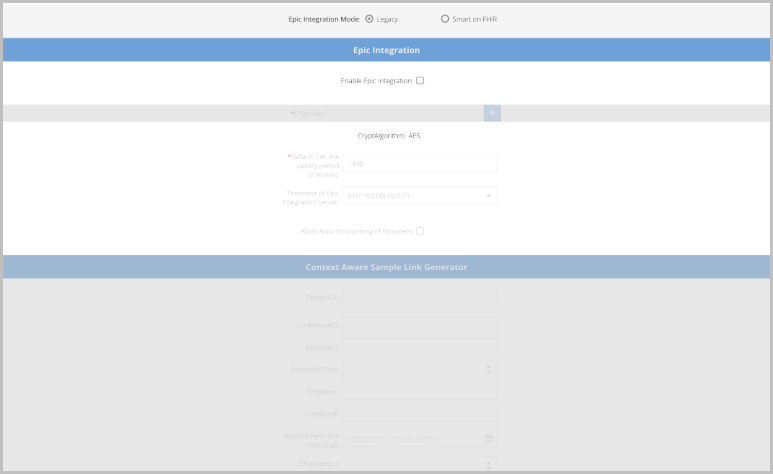
Select one of the following Epic integration modes:
- Legacy: Use this option to continue using the existing Epic integration mode.
- SMART on FHIR: Use this option to enable the new SMART on FHIR workflow with the Vidyo Epic FHIR Service.
To enable the new feature, choose SMART on FHIR, then complete the configuration sections below.
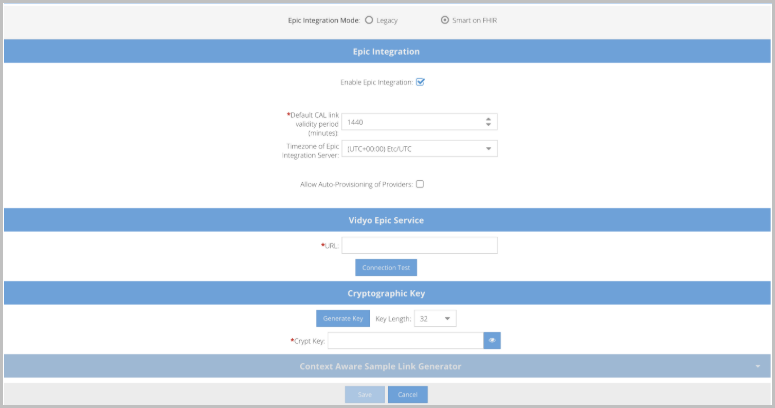
Enter the required configuration details in each section.
3.1 Epic Integration settings
Some required settings follow below.
- Enable Epic integration: this checkbox must be selected.
- Default CAL link validity period: Default of 1440.
- Time zone of Epic Integration Server: This is the time zone of your Epic FHIR server.
3.2 Vidyo Epic FHIR Service URL
For on-premises deployments, you must define a URL for your deployment.
For cloud deployments, this URL will be provided to you by the Vidyo Cloud Operations team.
- URL: This is the URL of your Vidyo Epic FHIR Service.
3.3 Generate the cryptographic key
For initial setup, click Generate Key. The generated key is used only between your Vidyo tenant and the Vidyo Epic FHIR Service. You do not need to enter this key in your Epic FDI records.
3.4 Upload Feature License settings
Some SMART on FHIR backend API workflows require a feature license. Upload the license provided by your Vidyo representative to explicitly enable the following Epic APIs:
- Connect
- Disconnect
- SaveMedia
- StoreAudioVideoTestResult
The SMART on FHIR launch workflow can still operate without the feature license; however, whether Epic backend APIs are invoked depends on the license that is uploaded.
Your Vidyo representative will provide the required license file and any additional enablement details.
3.5 Provide Epic deployment information
Provide the following Epic deployment information to Vidyo complete the Vidyo Epic FHIR Service configuration:
- authURL: This is the Authentication Service URL of your Epic deployment. This is usually of the format:
- apiURL: This is the API Service URL of your Epic deployment. This is usually of the format:
https://AUTH_URL_FQDN/oauth2/token
https://API_URL_FQDN/api/FHIR/R4
For on-premises deployments, you will use these URL’s to configure your Vidyo Epic FHIR Service deployment.
For cloud deployments, you must provide this to the Vidyo Cloud Operations team.
4. Configure Epic launch records
In Epic, configure the required FDI records for the launch workflows your organization will support.
- Patient
- Provider
- Direct Join (if required)
Use the launch URL format that matches each workflow and environment.
4.1 Patient launch URLs
The launch URLs for Patient workflows follow below.
Test launch URLs
This launch URL will use Non-Prod (Test) Client-IDs.
Here is the Test Launch URL for testing on Vidyo’s Sandbox:
Production launch URLs
This launch URL will use Production Client-IDs.
Here is the Test Launch URL for testing on Vidyo’s Sandbox:
|
Note In both Test and Production Patient launches, your FDI launch must be configured to send at least the following two parameters:
|
4.2 Provider Launch URLs
The launch URLs for Provider workflows follow below.
Test launch URLs
This launch URL will use Non-Prod (Test) Client-IDs.
https://VIDYO_EPIC_FHIR_SERVICE_FQDN/api/v1/launch/test/provider
Here is the Test Launch URL for testing on Vidyo’s Sandbox:
Production launch
This launch URL will use Production Client-IDs.
https://VIDYO_EPIC_FHIR_SERVICE_FQDN/api/v1/launch/prod/provider
Here is the Production Launch URL for testing on Vidyo’s Sandbox:
|
Note In both Test and Production Patient launches, your FDI launch must be configured to send at least the following two parameters:
|
4.3 Direct Join launch
Configure Direct Join with guidance from your Epic technical specialist. In general, use the following launch URL format.
Test launch URL
Production launch URL
5. Configure SMART on FHIR handshake response values
In the legacy Epic integration, required and optional values were passed to Vidyo through an encrypted CRYPTSTRING in the FDI record. With SMART on FHIR, those values must be returned through the OAuth handshake response instead.
Configure the following response values:
| Parameter | Required |
| SessionID | Yes – usually %CSN% |
| ConferenceID | Yes – usually %CONFERENCEID% |
| ExternalID | Yes – usually %EPICUSERID% |
| FirstName | Yes – usually %FNAME% |
| LastName | Yes – usually %LNAME% |
| tenantURL | Yes |
| AppointmentTime | Optional |
| Timestamp | Optional |
| LinkValidityPeriod | Optional |
| AP | Optional |
| EBM | Optional |
| InviteID | Optional |
| DialOut | Optional |
| LegacyDevice | Optional |
| CallerID | Optional |
| allowMod | Optional |
| orgId | Optional |
| CustomData | Optional |
If your legacy workflow also passed URL parameters outside of the CRYPTSTRING, configure those values to be returned through the SMART on FHIR OAuth handshake response, as well.
Commonly used optional parameters include:
| Parameter | Required |
| beautyScreen | Optional |
| chat | Optional |
| directDial | Optional |
| displayName | Optional |
| hwt | Optional |
| hwtStrictMode | Optional |
| initializeWebView | Optional |
| jvw | Optional |
| labels | Optional |
| lockUserName | Optional |
| participantNot | Optional |
| wrac | Optional |
| wrbc | Optional |
| wrvc | Optional |
Completion check: After configuration is complete, validate patient, provider, and Direct Join launches in a non-production environment before enabling the workflow for production users.