5. Use the VidyoRoom Admin UI
The VidyoRoom Admin UI enables administrators to configure and manage their VidyoRooms. To prepare your VidyoConnect Room SE and VidyoRoom SE, you should access the Admin UI and set the Application Mode as described in this section.
Access the VidyoRoom Admin UI
To access the VidyoRoom Admin UI:
- Enter <http://[IP]> in a browser window.
- Enter the username and password of the VidyoRoom Administrator account.
|
Note Use http and not https when accessing your VidyoRoom Admin UI. VidyoConnect Room SE and the VidyoRoom SE does not come with a Vidyo self-signed certificate bundle. You can use your own certificate, at which point https will work with your IP address. |
Configure the VidyoConnect Room SE/VidyoRoom SE Application Mode
If you are an administrator of a VidyoRoom SE with Windows 10, you must configure the VidyoRoom SE Application Mode via the Admin UI.
To configure the VidyoConnect Room SE or VidyoRoom SE Application Mode:
- Access the VidyoRoom Admin UI as described in the previous section.
- Click the Settings tab.
- VidyoConnect Room SE or VidyoRoom SE (using Windows 10):
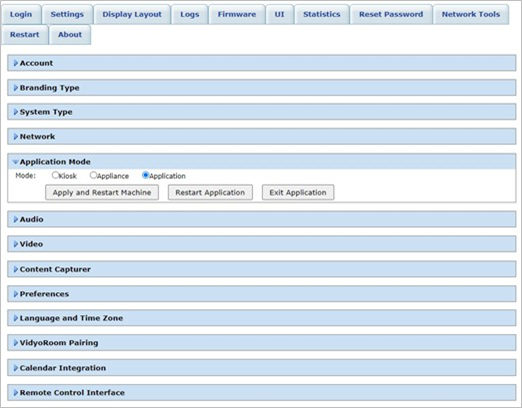
- Click the blue triangle next to the word Application Mode to view the Application Mode settings for your group video solution.
- Select either the Kiosk, Appliance, or Application radio button:
- Kiosk prevents the VidyoRoom SE application from modifying the OS and allows users to exit the app from the On-Screen UI. This mode is the default.
- Appliance locks down the system by preventing Windows updates from automatically occurring, disables certain Windows notifications, creates inbound firewall rules for sharing, disables some special keys on the keyboard, hides the taskbar, and affects other functionality.
- Application enables you to run VidyoConnect Room SE as an application and is only available with VidyoConnect Room SE running on Windows 10 (this mode is not available for VidyoRoom SE). When in this mode, the VidyoConnect Room SE functions like other apps do. For example, you can minimize and maximize the VidyoConnect Room SE application, move it behind other apps, view the taskbar, work in other apps using the mouse and keys, and more.
- Click one of the following:
- Apply and Restart Machine – This option is available for all three modes. If you select this option when in Appliance Mode, your machine will restart in Appliance mode (that is, it will block certain functions in Windows to make the PC an appliance). For details about the impacted functions, refer to Configure the application mode in the VidyoConnect Room and VidyoRoom Administrator Guide. If you select this option when in Kiosk or Application Mode, the machine will not restart but the application will start running in the mode you selected.
- Restart Application – This option is available for all three modes. When you select this option, the VidyoConnect Room SE or VidyoRoom SE application restarts in the selected mode.
- Exit Application – This option is available for all three modes; however, there are different system responses based on the mode you select:
- Kiosk — If you select Exit Application when in Kiosk Mode, you exit the VidyoConnect Room SE or VidyoRoom SE application, and the computer then becomes available for other uses. On reboot, the application restarts in Kiosk Mode.
- Appliance — If you select Exit Application when in Appliance Mode, you exit the VidyoConnect Room SE or VidyoRoom SE application, and the computer then unlocks and becomes available for other uses. On reboot, the application locks again and restarts in Appliance Mode.
- Application — If you select Exit Application when in Application Mode, you exit the VidyoConnect Room SE application. Since the computer is already available for other uses when in Application Mode, exiting this mode does not affect other apps on the computer. On reboot, the application starts in Application Mode.
|
Note For more information (such as other functionality affected when selecting Appliance mode), refer to Configure the Application Mode in the VidyoConnect Room and VidyoRoom Administrator Guide. |
|
Note If you want to change modes, you must click Apply and Restart Machine; clicking Restart Application restarts the application but it does not change the mode. |
