In-room announcements
Introduction
We’re introducing the ability to broadcast verbal and visual announcements to patient rooms in multiple languages.
This powerful new feature complements our suite of teleconference and virtual patient monitoring solutions. You can also leverage this feature inside the Epic Monitor ECAL mode.
This document covers everything you need to know about the feature and how to use it.
Feature overview
Registered users (signed in using portal credentials, SAML, or Epic Auto-Provisioned) on VidyoConnect Desktop or WebRTC will have the ability to send in-room announcements to VidyoRooms that support this feature.
These announcements are played over the selected speaker and displayed on-screen in the language of choice.
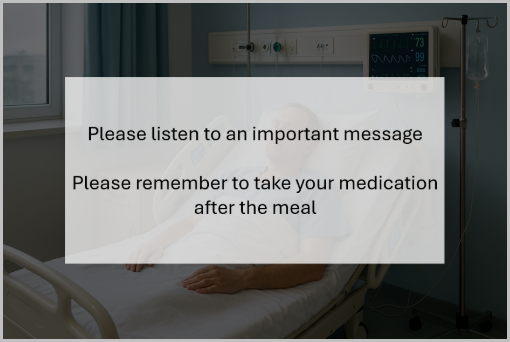
You can click on the links below to read about each of the endpoints in detail.
- VidyoConnect for Desktop
- VidyoConnect for WebRTC
- VidyoConnect Room and VidyoRoom
- VidyoConnect Room Administrator Guide
Configure the in-room announcements
You can configure the prompts for your environment from our in-room announcement dashboard.
Please note these settings are:
- Applicable tenant-wide.
- Only editable by the tenant admin and the super admin.
- Read from the configuration page at the start of every call.
To access these settings:
- Log into a VidyoConnect Desktop application that supports this feature (version 25.2.0 or later) using tenant admin credentials.
- Click Settings > Preferences > In-Room Announcements > Open In-Room Announcements Admin Page.
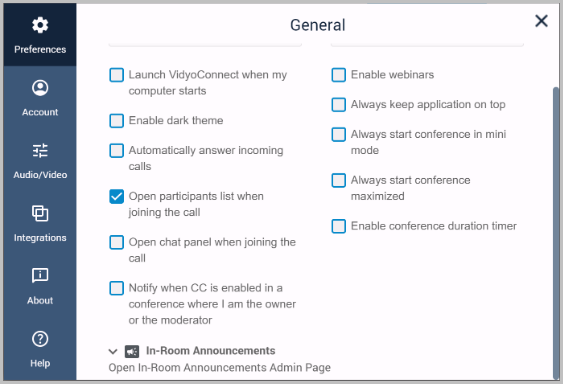
In-room announcements dashboard
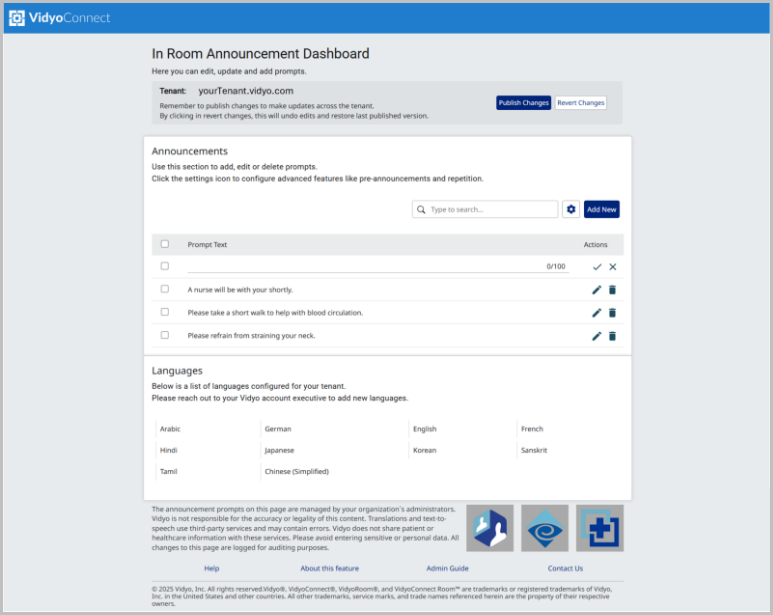
This is the command center for in-room announcements. It has the following key elements:
- Tenant name and controls to publish or revert changes.
- Announcement configuration section.
- Set of languages.
Tenant name and controls to publish or revert changes
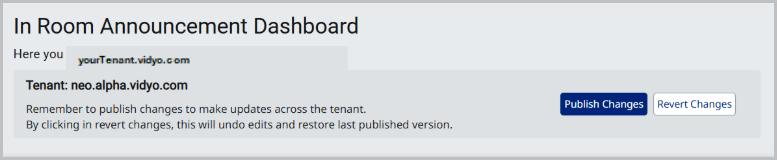
- You are required to publish any changes you make to the In Room Announcement Dashboard.
- If you make changes and decide you do not want them anymore, you can easily click Revert Changes to revert the environment to its previous state.
Announcement configuration section
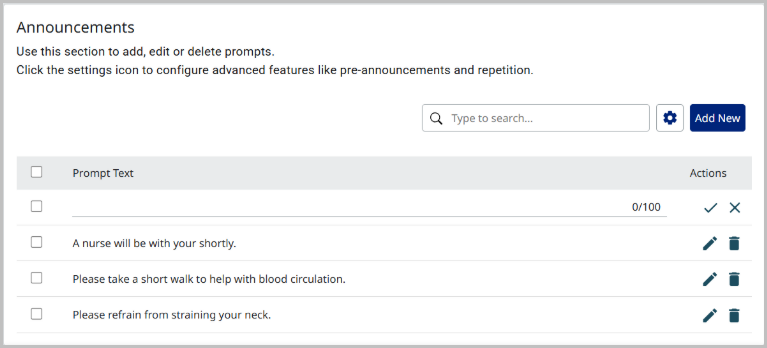
This section houses the most critical set of configurations for this feature. You can add, edit, or delete prompts from here. You can access advanced feature settings by clicking on the gear icon.
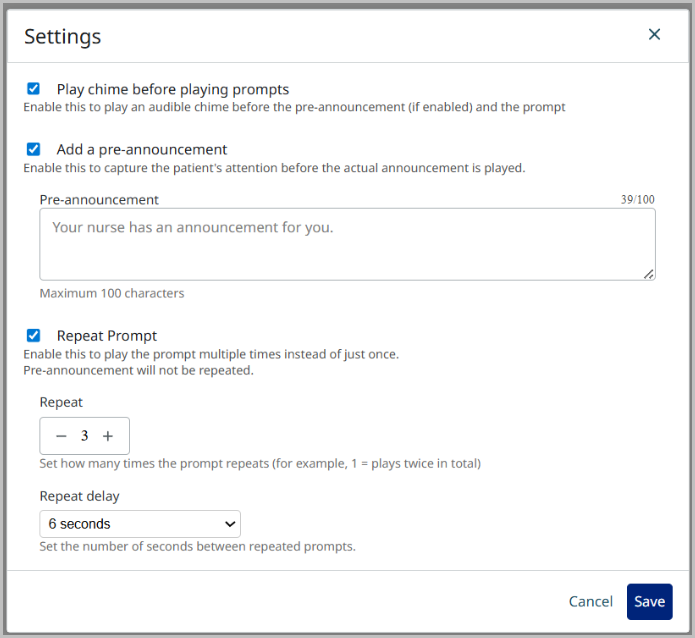
Play chime before playing prompts
- You can configure the VidyoRoom to play an audible chime before playing the pre-announcement (if configured) and the actual announcements.
- The default chime is the same as the default VidyoRoom ringtone.
- By default, the chime is the same as the default ringtone of VidyoRooms.
- You can upload a custom pre-announcement chime on the VidyoRoom admin panel. You can read more about it here.
Add a pre-announcement
- This section lets you configure a pre-announcement message.
- This will be played after the chime, but before the actual announcement.
- The pre-announcement plays only once regardless of the repeat count of the announcements.
- The pre-announcement is also translated into the language of choice.
Repeat prompt
- This section lets you configure prompt repetition.
- Note that this is the repeat count; setting the value of 1 means the prompt will repeat once, playing a total of 2 times.
Repeat delay
- This setting is applicable only if you have configured the prompts to repeat.
- This delay applies only to the delay between each repeated prompt.
Things to note
- The default delay between the pre-announcement chime, the pre-announcement, and the actual announcement, is configured to be 1 second.
- This is not configurable at this stage.
- The repeat delay parameter only affects the delay (in seconds) between each repeated prompt.
- The sequence of the prompts will look like:
Chime + 1 Second Gap + Pre-Announcement Message + 1 Second Gap + (Announcement + Repeat Delay) * Repeat Count
Set of Languages
- The languages are configured at the tenant level.
- This is configured by the Enghouse CloudOps teams.
- You can reach out to your account executives if you would like to have a language added to your tenant.
Quick Recap
- The languages are configured at the tenant level.
- This is configured by the Enghouse CloudOps teams.
Requirements
You will need these components to leverage this feature:
- A VidyoConnect Desktop or WebRTC endpoint that supports this feature (25.2.0 or later) for sending announcements.
- A VidyoConnect Room or VidyoConnect Room SE endpoint that supports this feature (version 25.2.0 or later) to receive the in-room announcement prompts and display and play the announcement.
- In-room announcements configured in the admin panel for the VidyoRoom.
- A set of prompts configured in the In Room Announcement Dashboard.
Need assistance?
We are excited to see all the incredible things you and your teams will do with this feature. Should you require any assistance in setting up prompts, or getting a demo of the workflow, please reach out to your account executive.